
Feature overview
Keep each recording and its trip details together
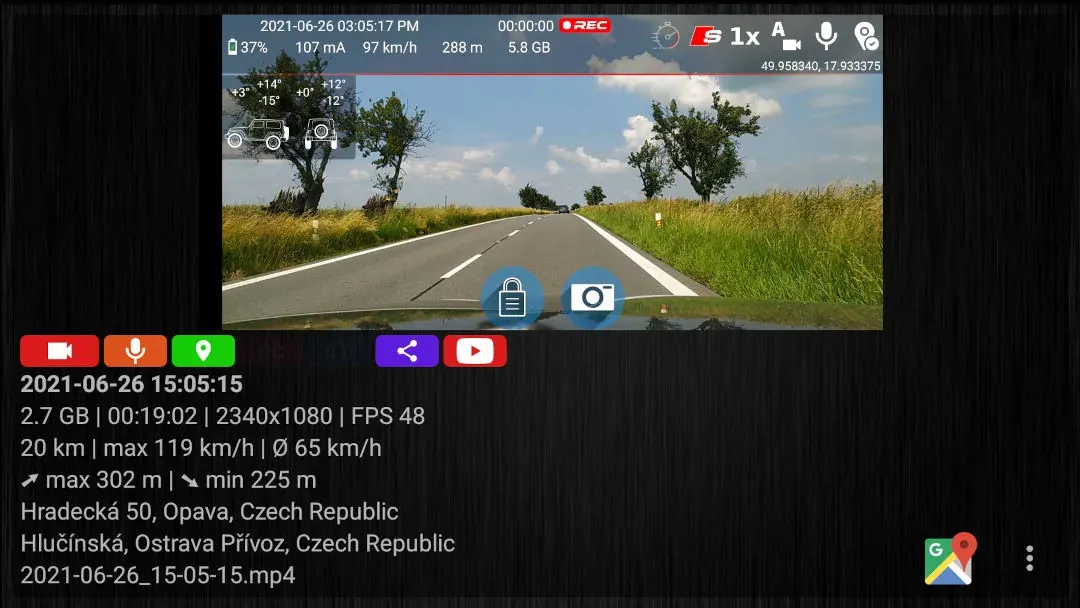
Each recording card combines a media preview with the details saved during that part of the drive. Open the file, inspect its technical and route data, view the route in Google Maps, or select recordings for sharing and deletion without searching through Android storage folders.
Quick setup
Review and manage recordings in three steps
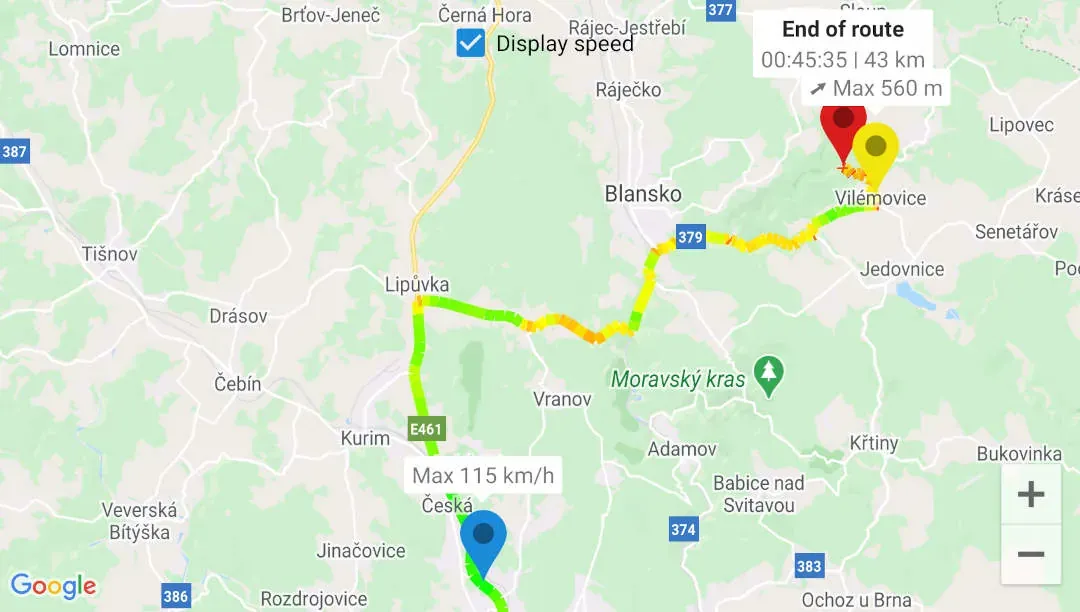
- Open the recording library, choose a date and tap the video or photo you need. When GPS route data is available, tap the map preview to open the route.
- Open Details to inspect the file, video, audio, route and camera data saved with the recording.
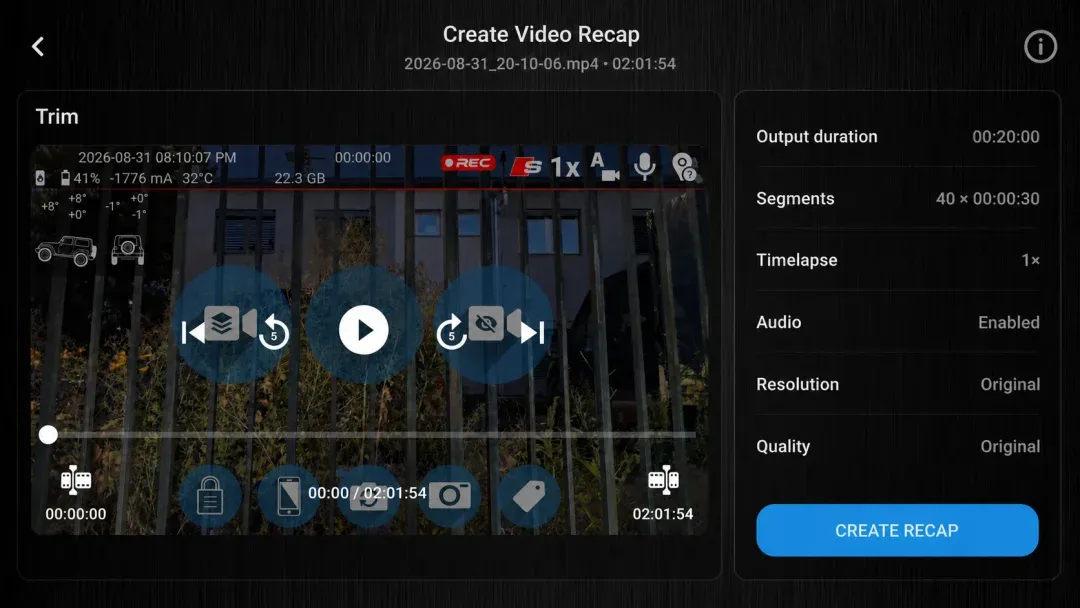
- Long-press a recording to select files for sharing or deletion. For one selected video, tap Video Recap to create a shorter edit.
Good to know
The available details depend on the recorded data
- Distance, speed, altitude and the recorded route require valid GPS data.
- Start and end addresses require an internet connection while recording. Connecting later does not add missing addresses. Loading the Google Maps view normally also requires internet access.
- Opening a recorded route requires Google Maps to be installed. If it is missing, DashCam Travel prompts you to install it.
Answers at a glance
Common questions
Are Trip files and statistics free?
Yes. You can browse, play, inspect, share and delete recordings without a purchase. Free users may see ads in the library. START and higher purchase levels remove them.
Which statistics does DashCam Travel show for a recording?
When the data is available, a video can show distance, average and maximum speed, maximum and minimum altitude, and the route's start and end. File details can also include duration, resolution, frame rate and audio data.
Why does a recording have no map or trip statistics?
The recording needs valid GPS and route data for the route and GPS-based statistics. Start and end addresses require an internet connection while recording; connecting later does not add missing addresses. Loading the map normally requires internet access and Google Maps installed on the device.
Can I share or delete several recordings at once?
Yes. Long-press a recording to enter selection mode, select the files you need and choose Share or Delete. DashCam Travel requires a long press on the delete action to reduce accidental deletion.
How does Video Recap make a short video?
Open the tool from one recording to create a shorter edit. See the Video Recap feature page for clip selection, output controls and availability.