
Feature overview
Build a shorter edit from one recording
Video Recap samples clips at even intervals across the part of the recording you select. You set the length and settings of the finished video, and DashCam Travel creates a new edited video that is faster to review and share than the full original recording.
Quick setup
Create a Video Recap in three steps
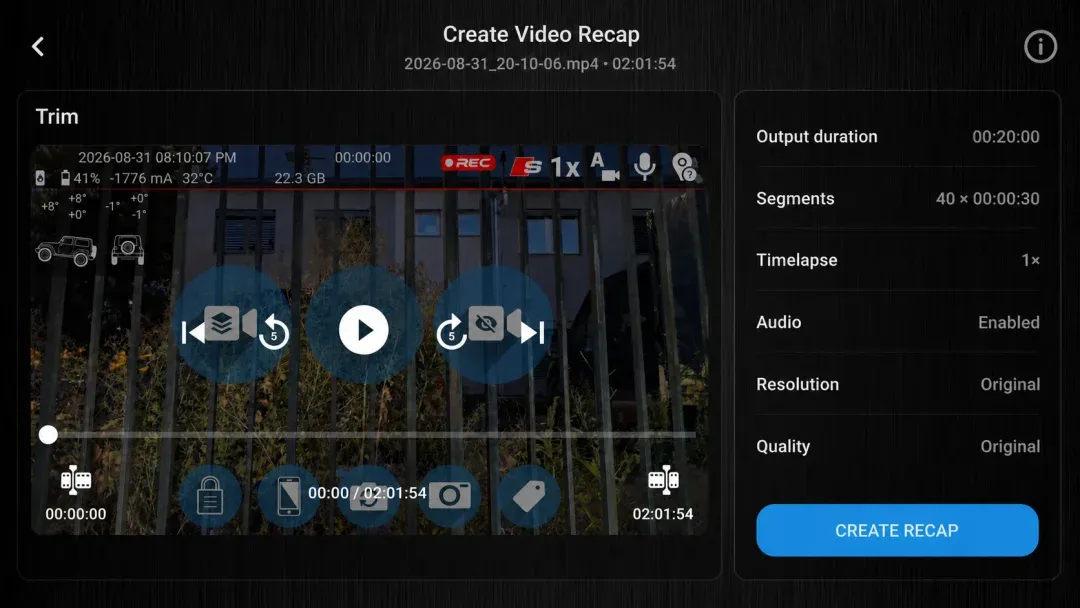
- In the recording library, choose a video at least 10 seconds long, tap the Video Recap icon, trim the section you want and set the output duration and number of segments.
- Choose the timelapse speed, audio, resolution and quality for the finished video.
- Review the summary and tap Create Recap. DashCam Travel saves the finished video in the recording list.
Good to know
One source recording, one shorter edit
- The source video must be at least 10 seconds long.
- Each Video Recap uses one source video. It does not combine several recordings into one recap.
- Video Recap selects short clips at even intervals across the chosen part of the source recording.
- Free users can create Video Recaps up to HD resolution and Medium quality. PROFESSIONAL or a higher package unlocks the original resolution and highest quality.
Answers at a glance
Common questions
Is Video Recap free?
Yes. Free users can create Video Recaps up to HD resolution and Medium quality. PROFESSIONAL or a higher package unlocks the original resolution and highest quality.
How does Video Recap choose clips?
It selects short clips at even intervals across the part of the source recording you choose.
Can Video Recap combine several recordings?
No. Each recap starts from one source video that is at least 10 seconds long.
Which settings can I change?
You can set the trim, output duration, segment count, timelapse speed, audio, resolution and quality before creating the recap.
Where does DashCam Travel save the finished recap?
DashCam Travel adds the finished video to the recording list, where you can review or share it with the other file actions.