
Feature overview
Review every recording's route
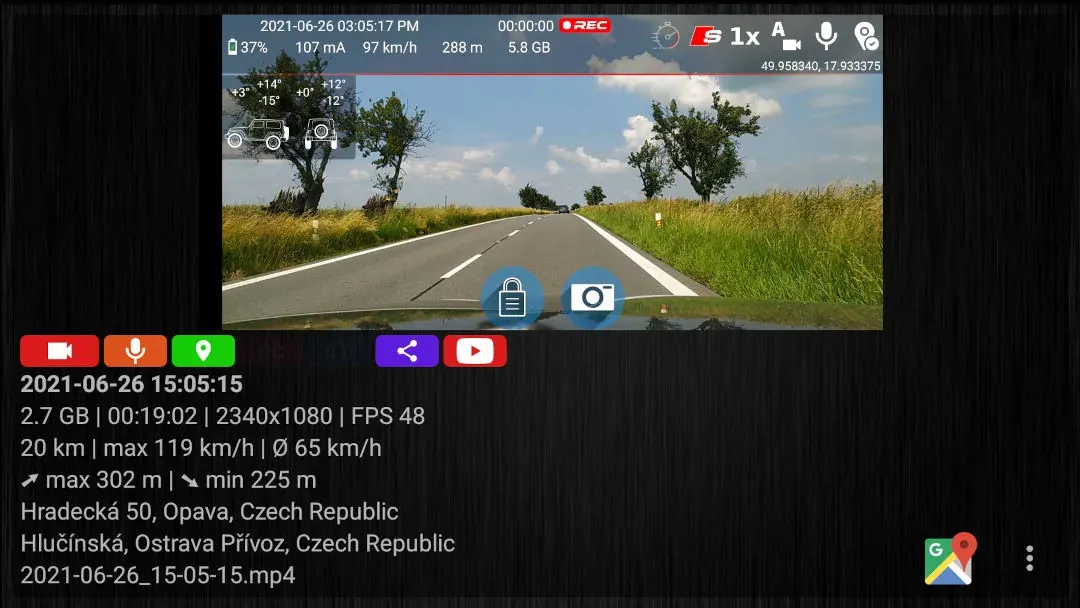
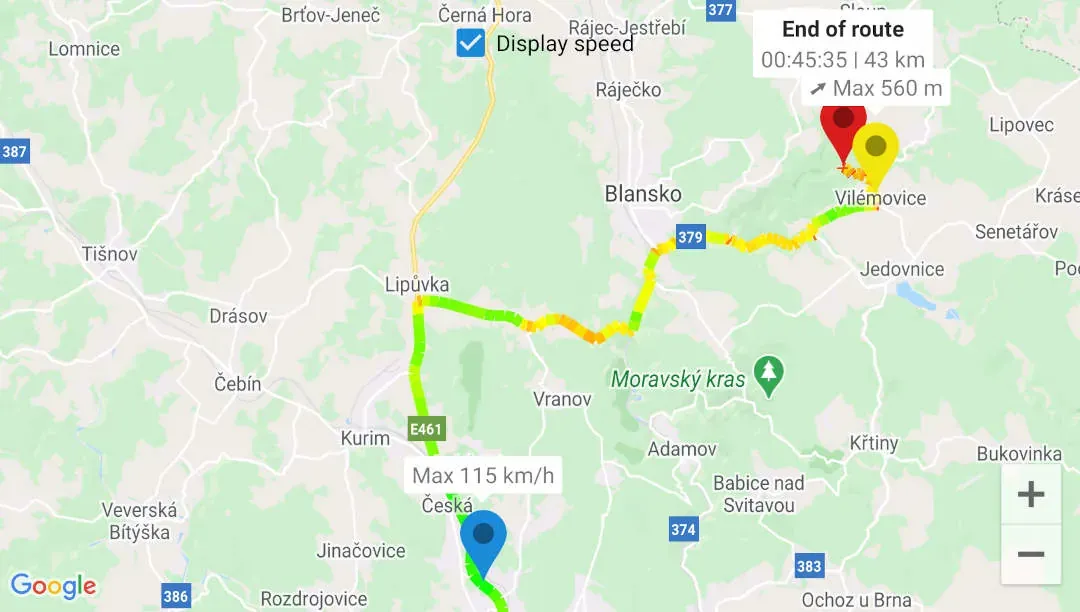
DashCam Travel adds a map thumbnail to every recorded file that has valid location data. Tap the thumbnail to open that file's route in Google Maps. The route can be shown in color-coded segments by speed, and you can review the recording's key statistics.
Quick setup
Open a recorded route in three steps
- Turn on GPS and allow DashCam Travel to access your location.
- Start recording.
- Make sure Google Maps is installed and the phone is online, then open the file list and tap the map thumbnail for the recording you want to review.
Good to know
Every file keeps its own route
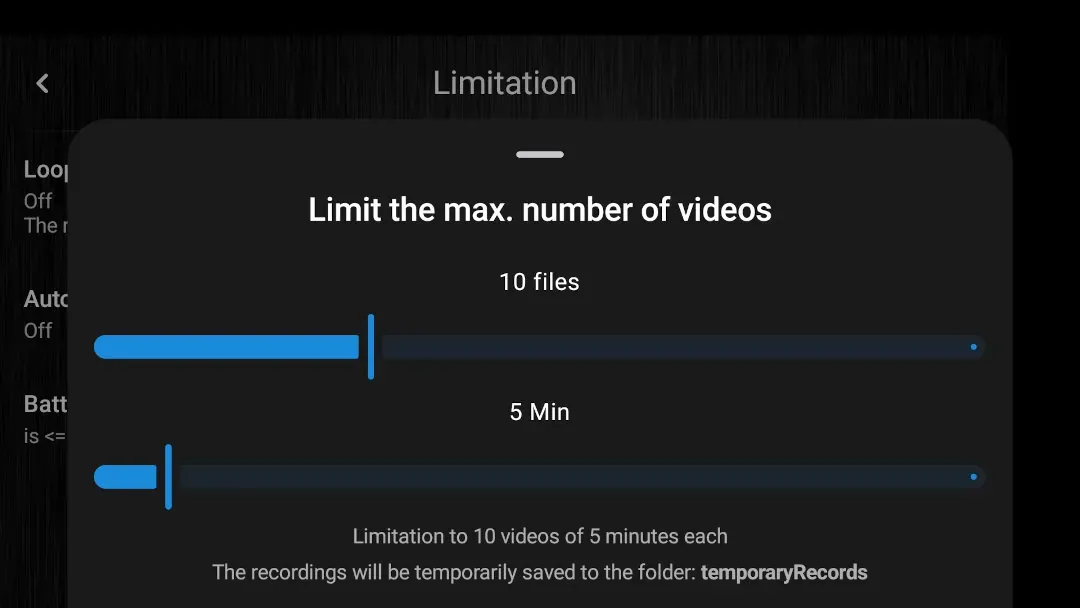
- Each recording file has a separate route, including files created by loop recording.
- If no GPS signal is available or location access is not allowed, neither the map preview nor the route can be displayed.
- Google Maps must be installed on the device to open a recorded route. If it is missing, DashCam Travel prompts you to install it.
- Recording the GPS route does not require an internet connection. Loading the Google Maps view normally does.
- The route opens as a standard blue path. Enable Display speed to color its segments by speed. The map also shows the start, end, time, distance, maximum speed and maximum altitude.
Answers at a glance
Common questions
Is the recorded route feature free?
Yes. Route review for recorded files in Google Maps is free.
What does DashCam Travel need to record a route?
GPS must be enabled and DashCam Travel must have permission to access your location. Without location data, the map thumbnail is not shown.
Does route recording work in the background or with the screen off?
Yes. The route can still be recorded when DashCam Travel records in the background or with the screen off, as long as GPS and location access remain available.
Does loop recording create one combined route?
No. Every file created by loop recording keeps its own map thumbnail and route.
Do I need Google Maps installed to open a route?
Yes. Google Maps must be installed on the device, and an internet connection is normally needed to load the map view. Recording the GPS route itself does not require internet. If Google Maps is missing, DashCam Travel prompts you to install it.