

Feature overview
Find a recording from the day it was recorded
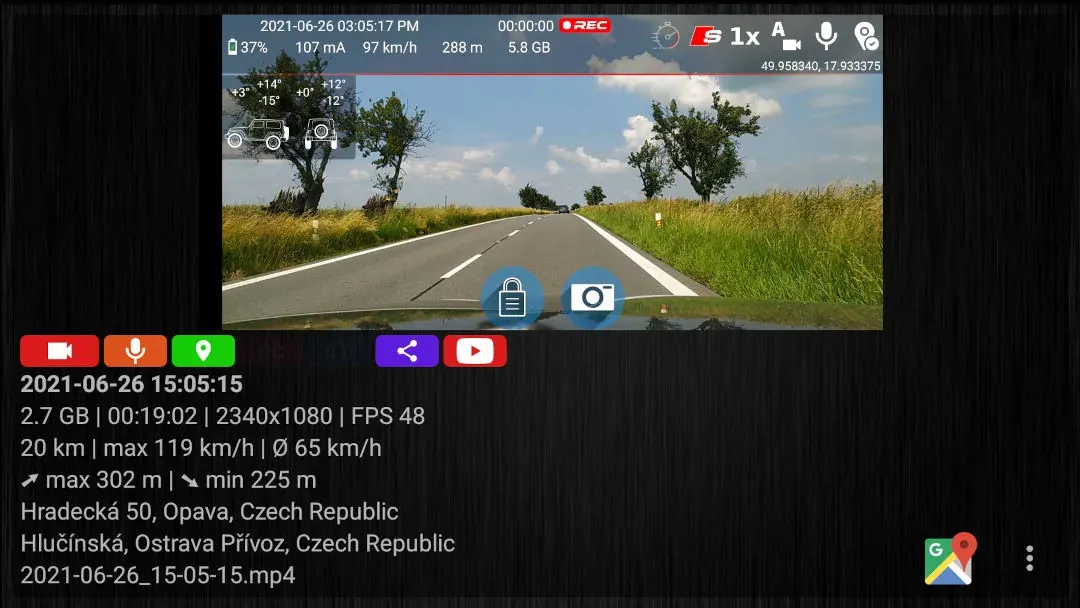
The library puts permanent recordings from the same recording date into one folder. Each folder shows its video and photo counts, stored size and any color labels. A summary above the list shows the storage path, file totals, used space and free space.
Quick setup
Open a saved recording in three steps
- Open the recording library from the DashCam Travel home screen.
- Choose a permanent folder named for the date you need. The newest dates appear first.
- Tap a video or photo to open it. Long-press a folder when you want to select it for sharing or deletion.
Good to know
Loop recordings remain temporary until you save them
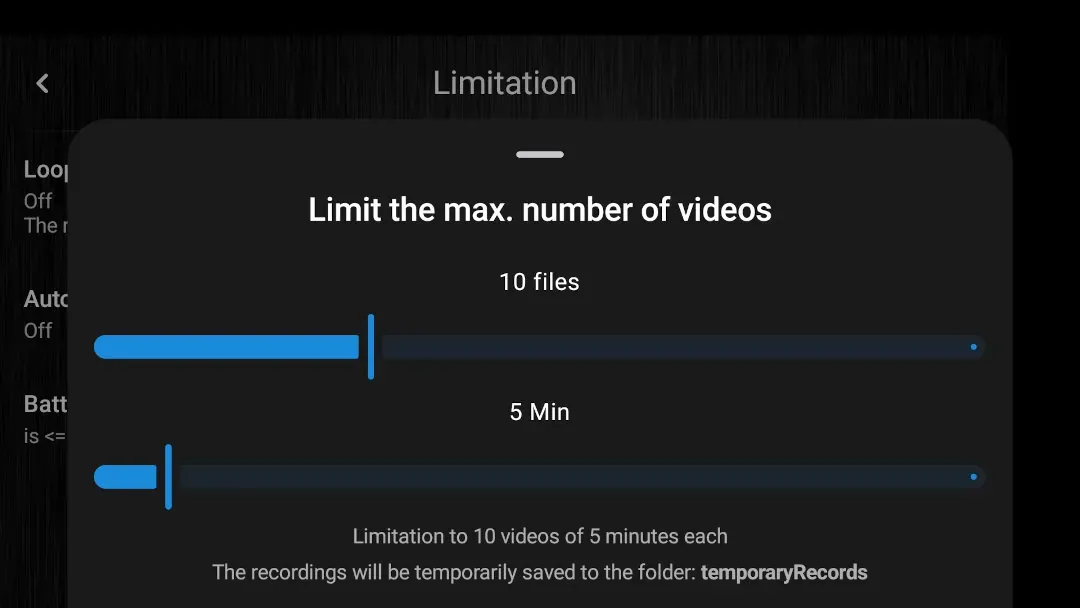
- Loop recording stores videos in temporaryRecords, where newer videos may overwrite older ones according to your configured file limit.
- Use the save button to move a temporary recording and its associated data into the permanent folder for that date.
- One date folder can contain recordings from several drives or recording sessions on that calendar day.
Answers at a glance
Common questions
What happens to recordings in temporaryRecords?
Loop recording keeps videos in temporaryRecords. Newer videos may overwrite older ones when the configured file limit is reached.
How do I keep a loop recording permanently?
Use the save button for the temporary recording you want to keep. DashCam Travel moves the recording and its associated data into the permanent folder for that date.
What information does a date folder show?
Each folder shows its date, video count, photo count, stored size and available color labels. The library summary also shows file totals and storage use.