
Feature overview
Keep old recordings from building up
DashCam Travel checks the permanently saved recording directory in the background and removes date folders older than the retention period you choose. You set the rule once, and the app continues applying it without requiring you to review every old video manually.
Quick setup
Set automatic deletion in three steps
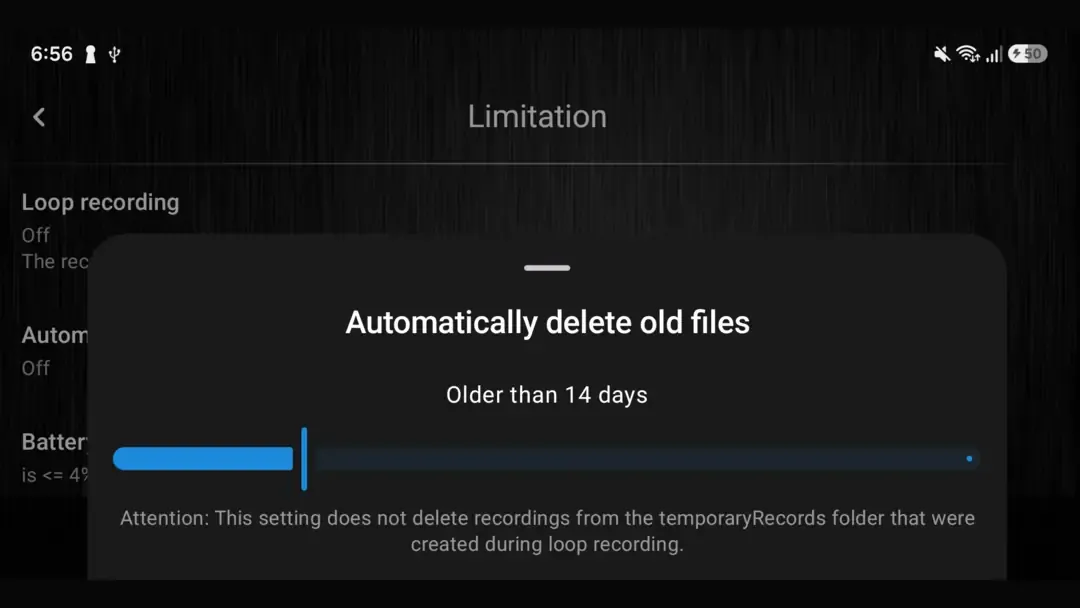
- Open Settings > Limitation > Automatically delete old files.
- Choose how long to keep permanently saved recordings, from 2 to 60 days. Select Off to disable automatic deletion.
- Leave the cleanup to DashCam Travel. The app checks for older recordings automatically in the background.
Good to know
The retention rule applies to permanently saved recordings
- Background cleanup is scheduled periodically, so an expired recording may remain until Android allows the next check to run.
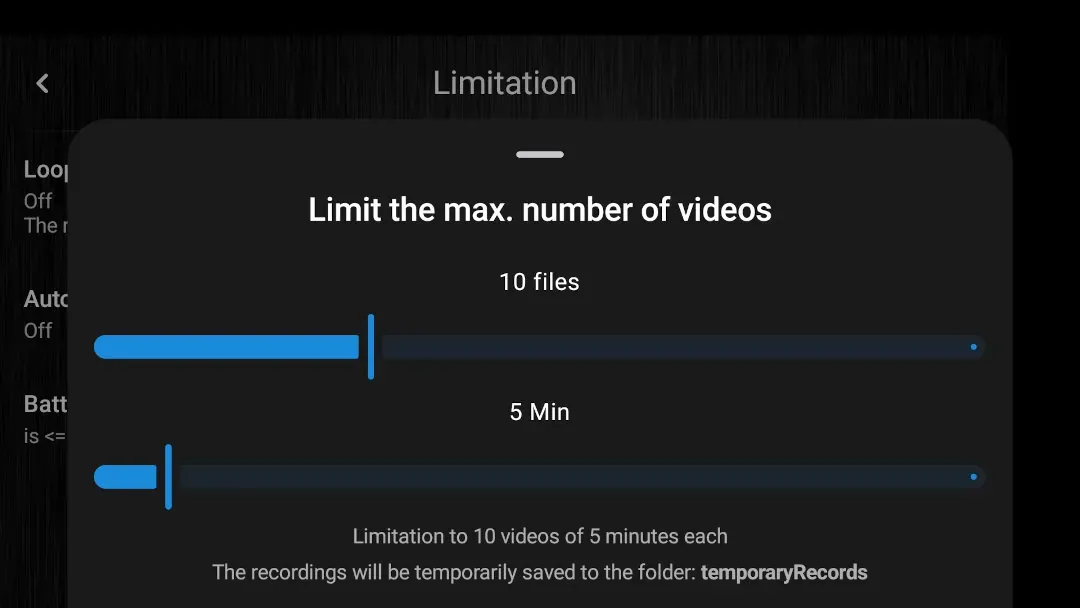
- The age limit applies to permanently saved recordings. Temporary loop-recording files are managed separately by loop recording.
- Turning the feature off stops future automatic deletion but cannot restore files that have already been removed.
Answers at a glance
Common questions
Is Automatic deletion free?
Yes. You can set an age limit for permanently saved recordings without buying a paid edition of DashCam Travel.
How long can DashCam Travel keep recordings?
You can keep permanently saved recordings for 2 to 60 days. Select Off when you do not want DashCam Travel to delete them by age.
Does Automatic deletion remove temporary loop-recording files?
No. It removes permanently saved recordings after the selected age. Temporary files are managed by your loop recording limits.
Does the DashCam Travel app need to stay open?
No. Cleanup is handled by scheduled background work. Android decides the exact execution time, so deletion may happen after a recording reaches the selected age rather than at that exact moment.