
Feature overview
Keep recording while DashCam Travel manages storage
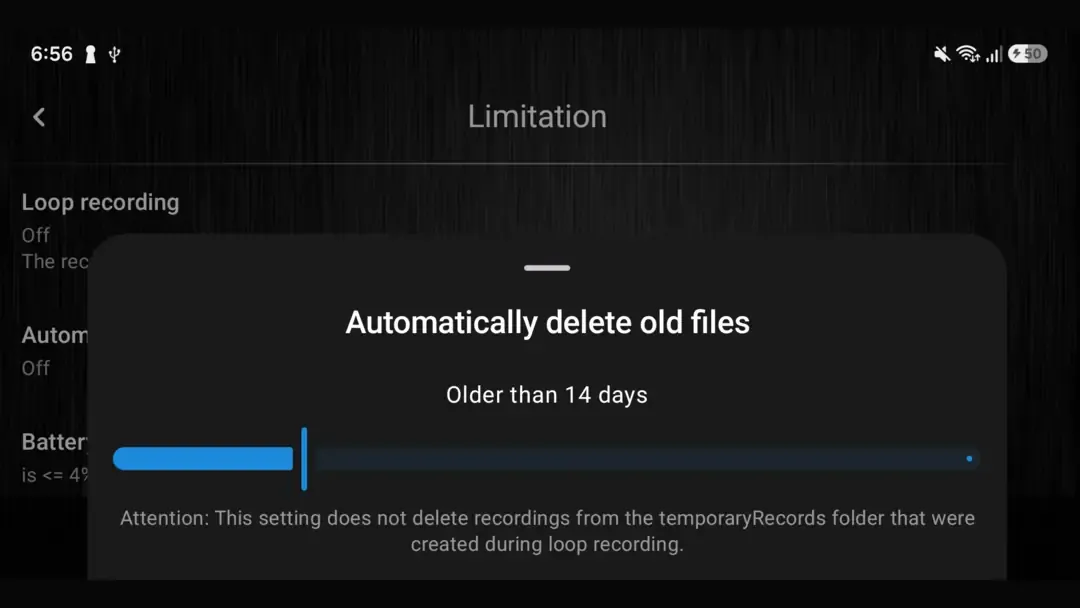
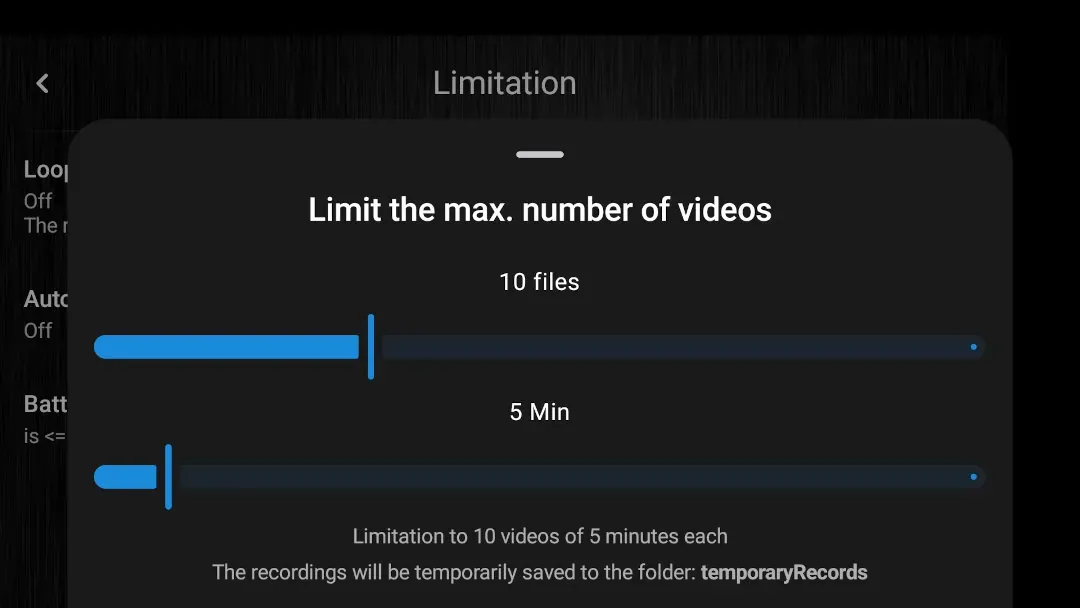
Loop recording keeps the camera running without allowing temporary recordings to grow without limit. Choose a maximum file length from 1 to 60 minutes and keep between 2 and 60 files; DashCam Travel continues in a new file and removes the oldest temporary file when it reaches the limit.
Quick setup
Set up loop recording in three steps
- Open the Limitation settings in DashCam Travel.
- Choose the maximum video length and number of temporary files to keep.
- Start recording. You can permanently save any important video with one tap.
Good to know
What loop recording keeps and removes
- Disabling the duration limit keeps recording in the current file until another recording limit applies.
- Disabling the file-count limit stops loop recording from removing older files by count.
- Videos saved permanently are kept outside the temporary recording loop.
Answers at a glance
Common questions
What happens when DashCam Travel reaches the file limit?
DashCam Travel removes the oldest temporary recording and continues recording into a new file.
Can I keep an important video?
Yes. Save the video permanently with one tap and DashCam Travel will keep it outside the temporary recording loop.
Where are videos stored?
Temporary loop recordings are stored in the temporaryRecords folder. Permanently saved videos are stored in savedRecords, organized into folders by date. The recording library shows the current storage path above the file list.