
Feature overview
Automate recording based on driving conditions
Auto-Start watches for the conditions you choose and can notify you or begin the selected recording mode. Auto-Stop ends an active recording when its conditions are met, or delays the stop by the configured interval.
Quick setup
Set up automatic recording in three steps
- Open Settings → Detection.
- Choose the conditions for Auto-Start and Auto-Stop.
- Choose whether Auto-Start should show a notification or begin a recording mode.
Good to know
Reliable automation needs the right Android settings
- Auto-Start notifications and Auto-Stop are free. Automatically started recordings can be tried for free.
- If you select multiple conditions, they must all be met at the same time. Opening DashCam Travel and detecting a supported navigation app work independently.
- Speed detection requires GPS to be enabled, precise location access and background location set to Allow all the time. Bluetooth detection requires Bluetooth to be enabled and a selected device. On Android 12 or later, it also requires Nearby devices access.
- Automatically beginning a recording requires this permission: Draw over other apps. Without it, you must tap the notification to start foreground recording.
- Navigation detection works only with supported navigation apps and requires Notification access.
- If automatic detection is unreliable, check that Android battery optimization is not stopping DashCam Travel in the background.
Answers at a glance
Common questions
Which conditions can start or stop recording?
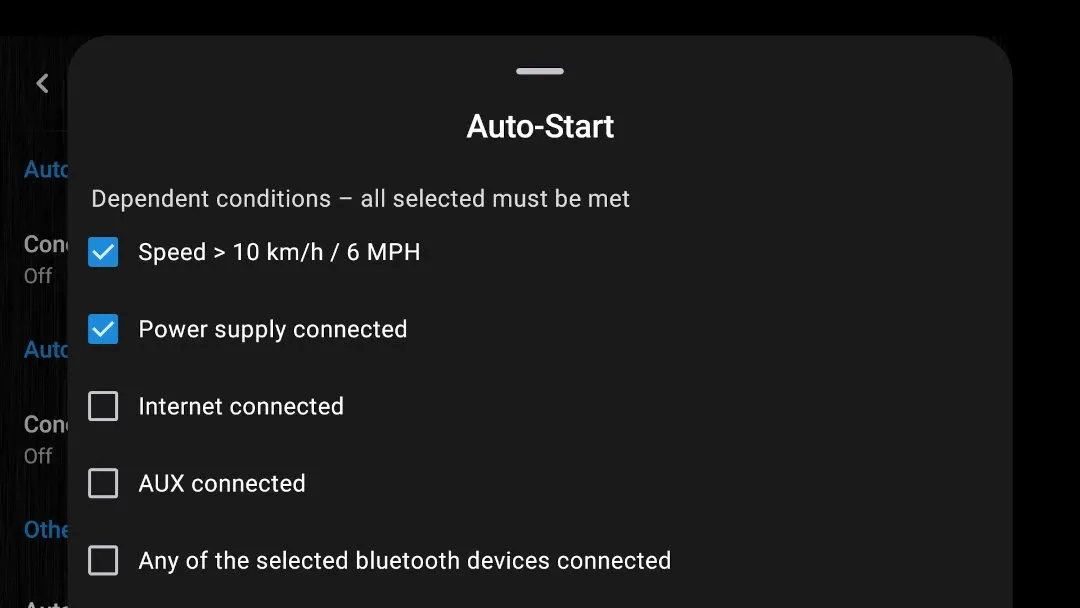
All selected dependent Auto-Start conditions—speed above 10 km/h or 6 MPH, connected power, internet, AUX and a selected Bluetooth device—must be met together. Opening DashCam Travel and navigation detection with a supported navigation app are independent triggers. Auto-Stop follows the same all-selected rule for zero speed and connection conditions, while exiting supported navigation is independent.
What can Auto-Start do when a condition is met?
It can show a notification, start background recording or start foreground recording with or without graphics. Notification-only Auto-Start is free. Graphics recording is free to try for one minute and then requires a purchase that includes graphics-overlay recording.
Is Auto-Stop free?
Yes. Auto-Stop is free.
Can I try Auto-Start before buying?
Yes. An automatically started recording can run for one minute so you can verify the setup. Continuing with foreground or background recording requires PROFESSIONAL or a compatible higher purchase level; graphics recording requires a purchase that includes graphics-overlay recording.
What should I check if Auto-Start does not work?
For speed detection, turn on GPS, allow precise location and set background location to Allow all the time. For Bluetooth detection, turn on Bluetooth and select a device. On Android 12 or later, allow Nearby devices access. Navigation detection needs a supported navigation app and Notification access. Automatically beginning a recording also requires Draw over other apps; without it, foreground recording needs a tap on the notification. Also make sure Android battery optimization is not stopping the app's background service. Find additional recommended settings at dontkillmyapp.com. The Detection log in Settings → Others can identify an unmet condition.