

Feature overview
Keep the road recording while you use your phone
Background recording frees the screen for navigation, music or another app without ending the video. DashCam Travel keeps recording from the single rear, front or ultra-wide camera you selected. The same mode also works with the screen off.
Quick setup
Start background recording your way
- Select one rear, front or ultra-wide camera and turn audio on if you want sound in the video.
- Tap the background-recording button. Manual in-app recording at normal speed and without the optional text overlay is free without a time limit.
- Open another app or turn off the screen. Use the ongoing system notification when you want to stop recording.
Good to know
Android keeps the recording visible
- DashCam Travel guides you through the Android system setting required for background recording.
- Android shows an ongoing system notification while the camera records in the background.
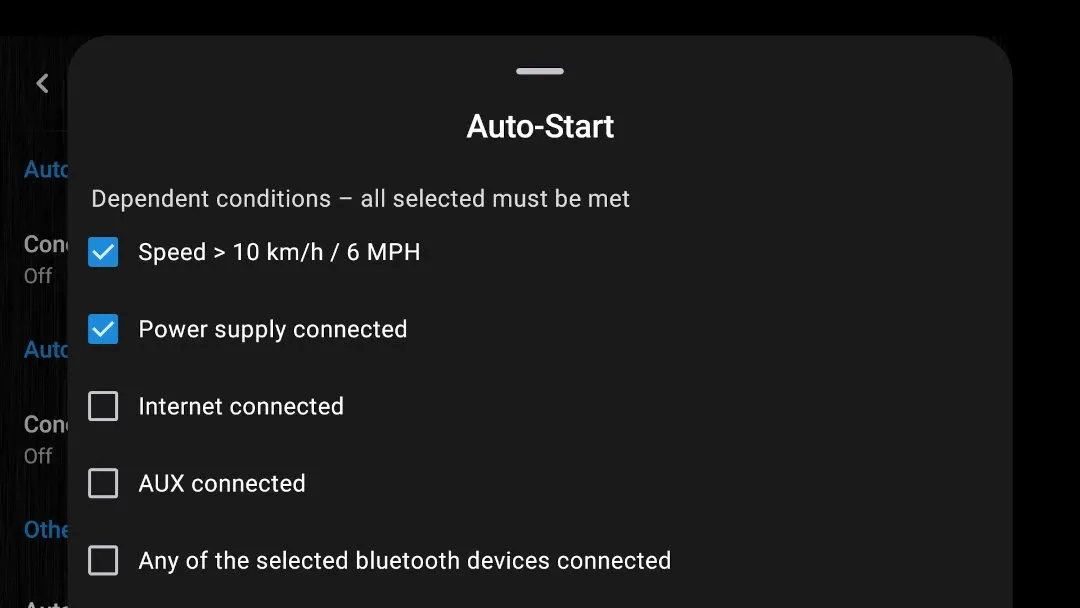
- Recordings started by Auto-Start, an app shortcut or a home-screen widget are limited to one minute without a purchase.
- Background timelapse is free to try for one minute and then requires a purchase.
- The optional background text overlay is rendered into the saved video, is free to try for one minute and then requires a purchase. Turn off Camera Stable to make the option available.
- Background mode records one selected camera at a time. Simultaneous front and rear recording is not available in this mode.
Answers at a glance
Common questions
Is background recording free?
Yes. Manual in-app background recording at normal speed and without the optional text overlay has no time limit. Timelapse, the text overlay and recordings started by Auto-Start, an app shortcut or a home-screen widget are limited to one minute without a purchase.
Can I record with another app open or the screen off?
Yes. You can keep navigation, a rideshare app or another app on screen, or turn the screen off while DashCam Travel records.
Do audio and loop recording work in the background?
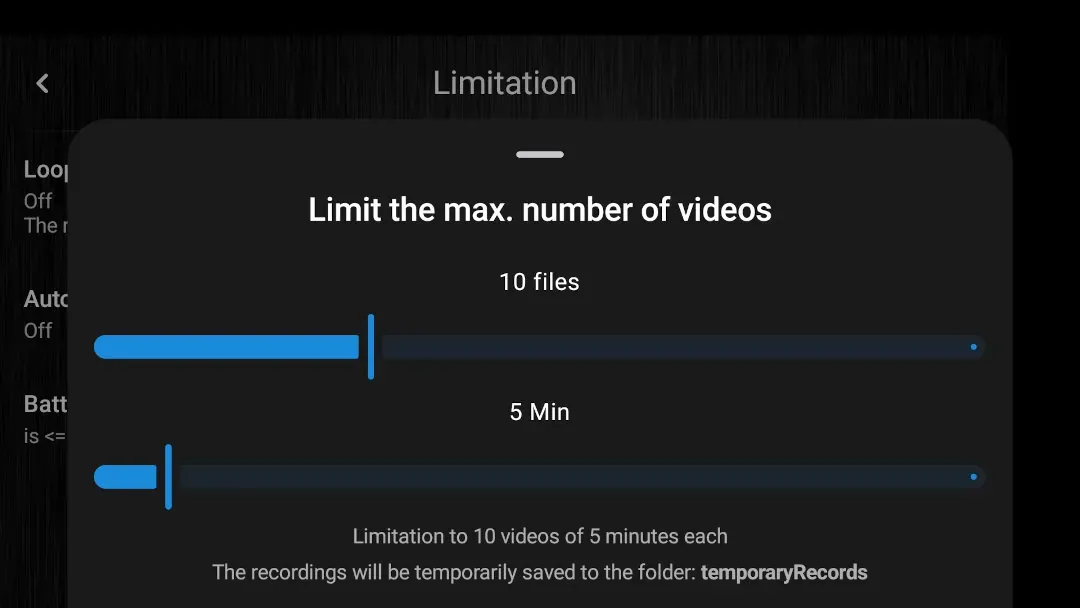
Yes. Background recording can include audio and follow your configured loop recording limits.
How can I start background recording?
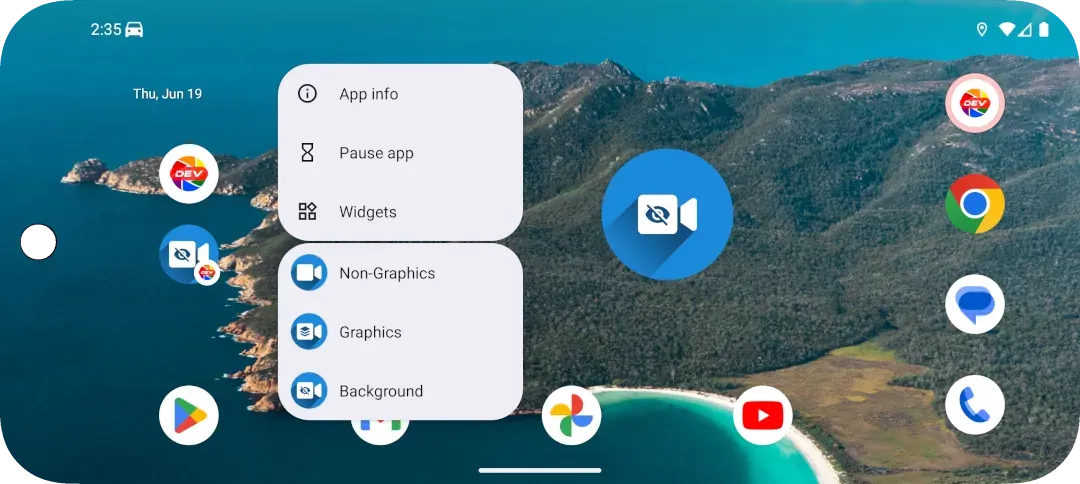
Use the in-app background-recording button, Auto-Start, an app shortcut or a home-screen widget. You can stop recording from the system notification.