
Feature overview
Choose what your recording screen shows
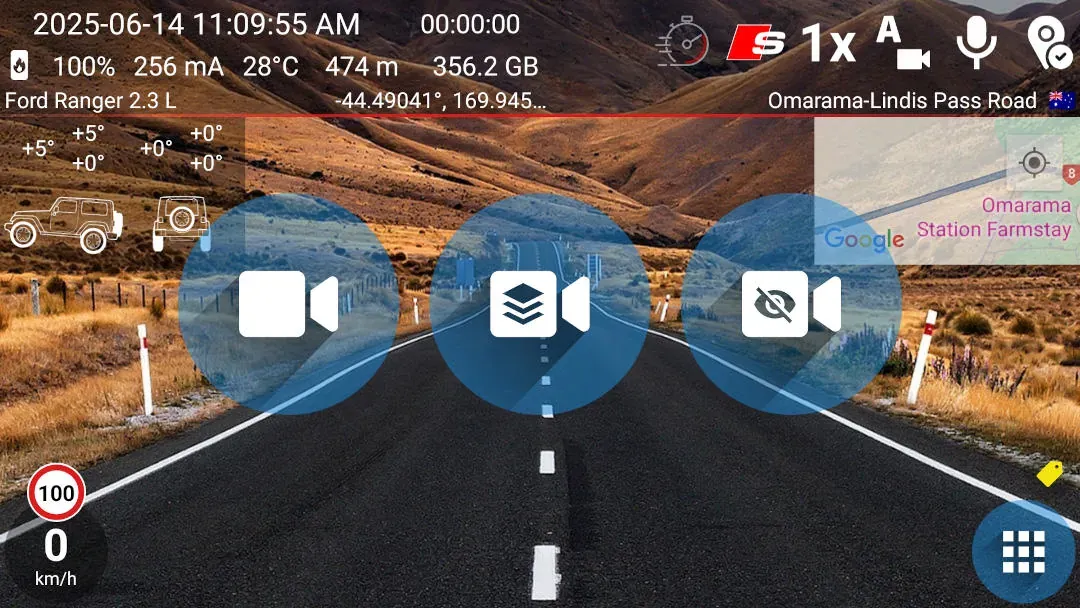
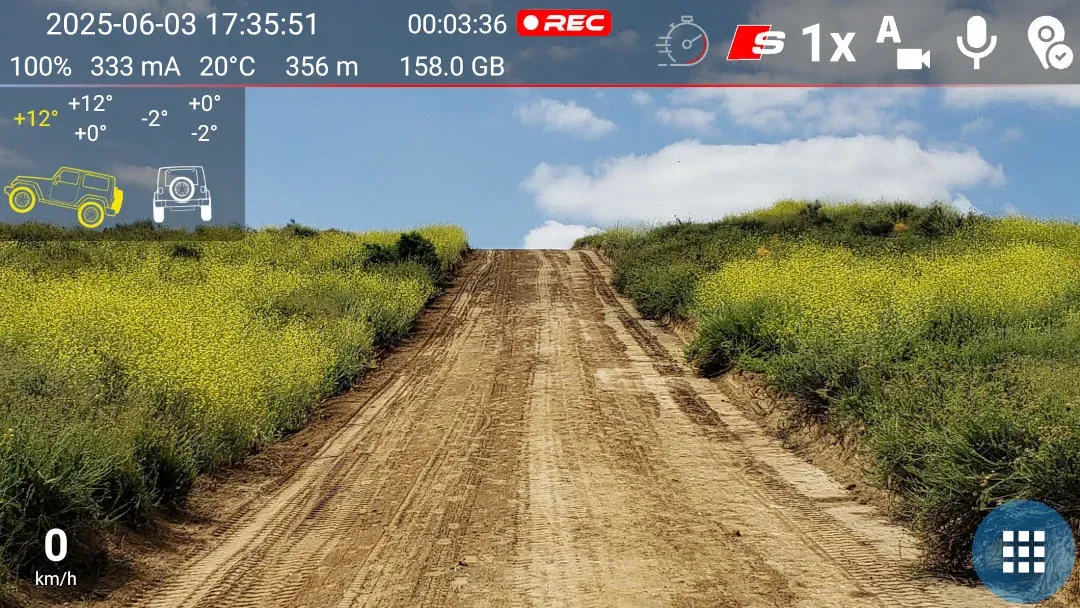
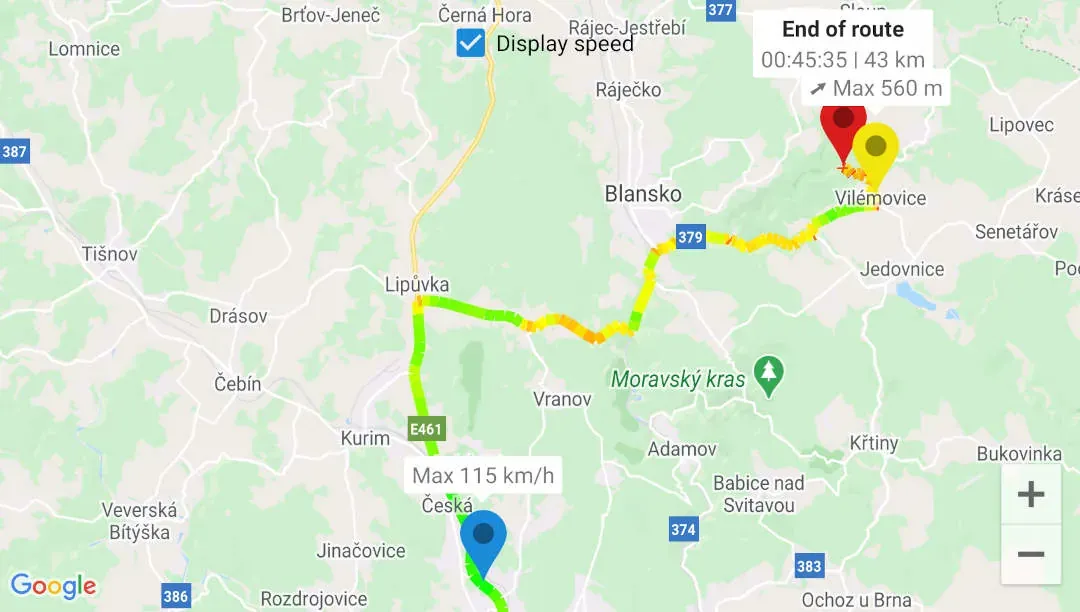
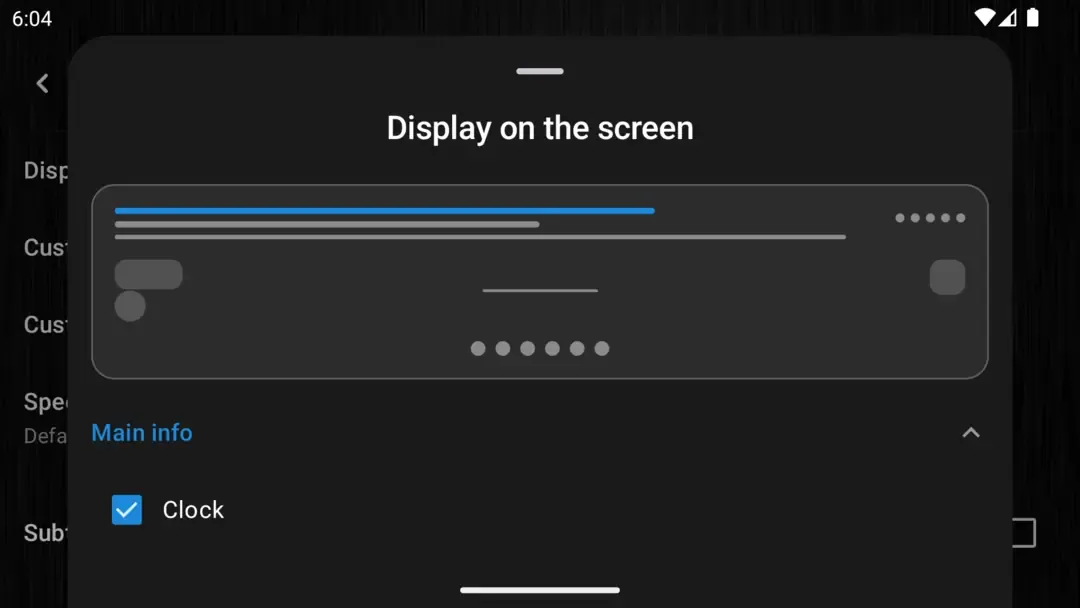
You can show or hide items such as speed, date and time, location, Google Maps, the inclinometer, device status, custom text, your logo and recording controls. The screen configuration is free. When you record with the paid graphics overlay, the same visible elements appear in the saved video.
Quick setup
Set up the recording screen in three steps
- Open Settings > Graphics > Display on the screen.
- Expand a screen area and enable or disable individual elements.
- Return to the recording screen and use the layout you selected.
Answers at a glance
Common questions
Does screen customization require a purchase?
No. You can change what appears on the recording screen without buying a paid edition. Recording the selected graphics into the saved video requires the paid graphics overlay.
Can I hide Google Maps or the inclinometer?
Yes. You can enable or disable both elements individually.
Which elements can I control?
You can control items such as speed, date and time, location, Google Maps, the inclinometer, device status, custom text, your logo, status icons and recording controls.