
Feature overview
See the important details while you record—and keep them in the video
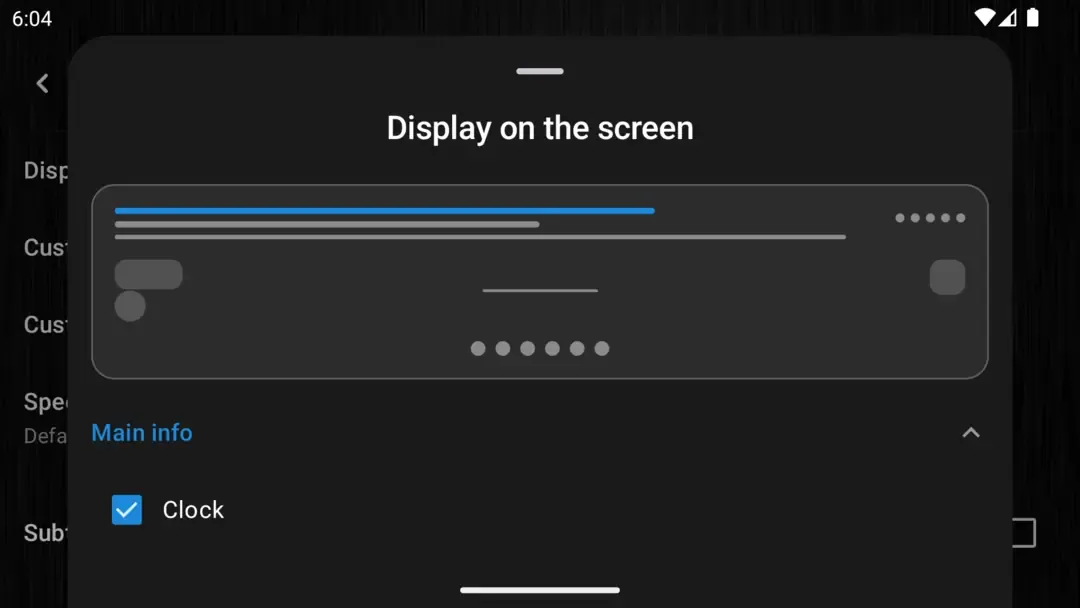
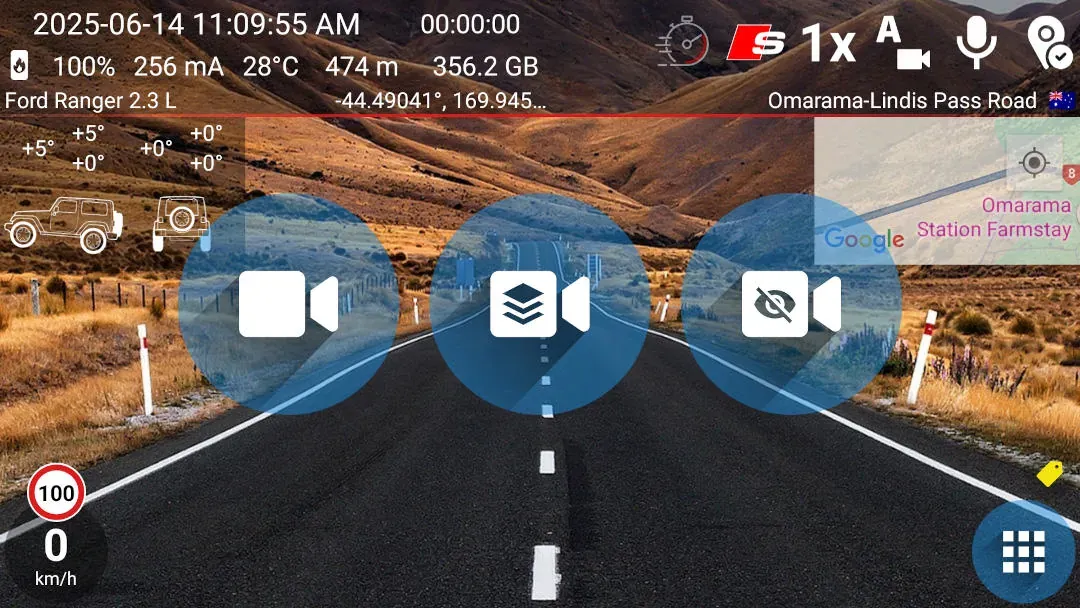
DashCam Travel displays important driving and device information on the recording screen. Every visible item is also part of the resulting video. You can choose which information appears on screen and in the resulting video. Depending on your settings, that can include speed, date and time, recording duration, altitude, street name, position on the map, battery status, device temperature and your own custom text.
Good to know
Location details need the right services
- Speed, altitude, GPS coordinates and map position require GPS to be enabled, precise location permission and a valid GPS fix.
- Street name and the Google Maps overlay require an internet connection.
- Google Maps must be installed to show the Google Maps overlay. DashCam Travel disables that item when the app is unavailable.
Answers at a glance
Common questions
Is all displayed data included in the saved video?
Yes. Every piece of information visible on screen will be part of the saved video.
Can I choose which information is visible?
Yes. Open Settings and enable or disable individual data elements to control what appears on screen and in the resulting video.
Can I try the feature before buying it?
Yes. You can try recording with graphics for one minute before deciding whether to buy GRAPHICS OVERLAY. After purchase, the one-minute limit is removed.
Can I record with the graphical overlay in the background?
No. Recording in the background with the graphical overlay is not technically possible. DashCam Travel supports background recording with a text overlay instead.