
Feature overview
Match the app to the light around you
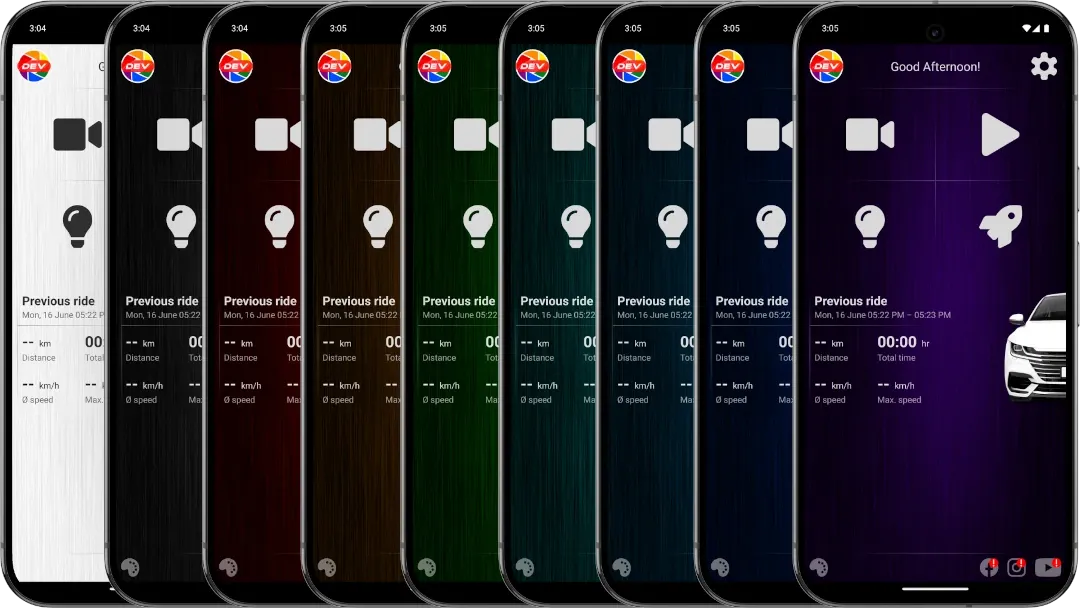
Light mode uses a bright interface for daytime driving. Dark mode uses darker colors that can reduce screen glare at night. Choose System when you want DashCam Travel to follow the appearance selected on your Android device.
Quick setup
Choose a theme in two steps
- Open DashCam Travel Settings and choose General.
- Open Theme and select System, Light or Dark.
Good to know
The theme changes the appearance, not the camera
- Light and dark modes do not change camera exposure, recorded colors or low-light performance.
- Dark mode does not add night vision. The phone and camera hardware determine recorded image quality at night.
- Android controls display brightness separately from the selected theme.
- Custom color palettes apply to dark mode and belong to the separate Custom themes feature.
Answers at a glance
Common questions
Are all themes free?
Yes. System, Light and Dark are available without a purchase.
How does the System theme work?
System makes DashCam Travel follow the light or dark appearance selected on your Android device.
Does Dark mode improve video recorded at night?
No. Dark mode changes the app interface. Camera hardware, exposure and available light determine the recorded image.
Does changing the theme adjust screen brightness?
No. Android controls display brightness separately from the DashCam Travel theme.
What is the difference between Dark mode and Custom themes?
Dark selects the dark app appearance. Custom themes change the accent color palette used with that dark appearance.