
Feature overview
Review the result on screen after you stop
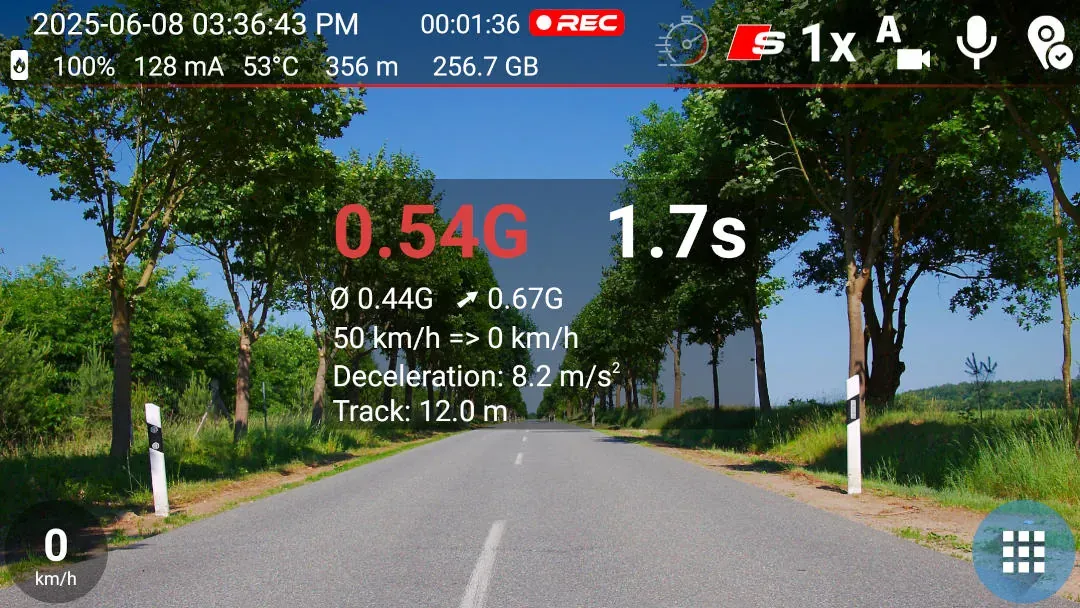
Sport mode watches GPS speed and G-force while you drive. After a complete braking event, the recording screen shows the starting speed, elapsed time, average deceleration and estimated distance travelled while braking.
Quick setup
Measure braking in three steps
- Secure the phone in its mount, turn on Sport mode and keep the phone still while sensor calibration finishes.
- Drive and brake to a stop. Sport mode detects the braking event and shows the calculated result.
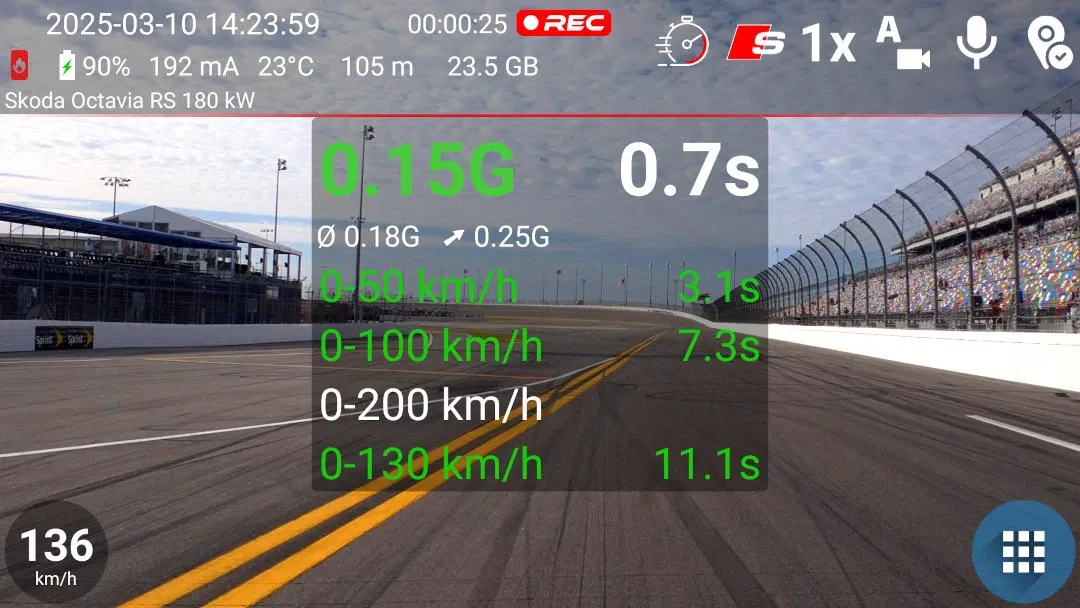
- Use foreground recording with the graphics overlay when you want the visible result saved in the video.
Good to know
What the measurement needs
- The phone needs an accelerometer, enabled GPS and precise location permission.
- Each free Sport mode activation ends after approximately 1 second of continuously detected G-force. Purchasing SPORT or UNLIMITED removes these limits.
- Sport mode is saved in the video only when using foreground recording with the graphics overlay.
- Phone sensors, GPS and the resulting calculations are approximate. Use the feature for fun in a safe and legal setting.
Answers at a glance
Common questions
Is Braking available in the free version?
You can turn Sport mode on again, but each free activation ends after approximately 1 second of continuously detected G-force. Purchasing SPORT or UNLIMITED removes these limits.
What does DashCam Travel show after a braking test?
Sport mode shows the starting speed, elapsed braking time, average deceleration in m/s² and an estimated braking distance. Metric mode uses metres, while imperial mode shows feet.
Do I need to start Braking manually?
No. Enable Sport mode and wait for sensor calibration. The app detects a complete braking event and displays the calculated result automatically.
Can the braking result appear in the saved video?
Yes. Start foreground recording with the graphics overlay to record the Sport mode result.