
Feature overview
Change the app accent with one tap
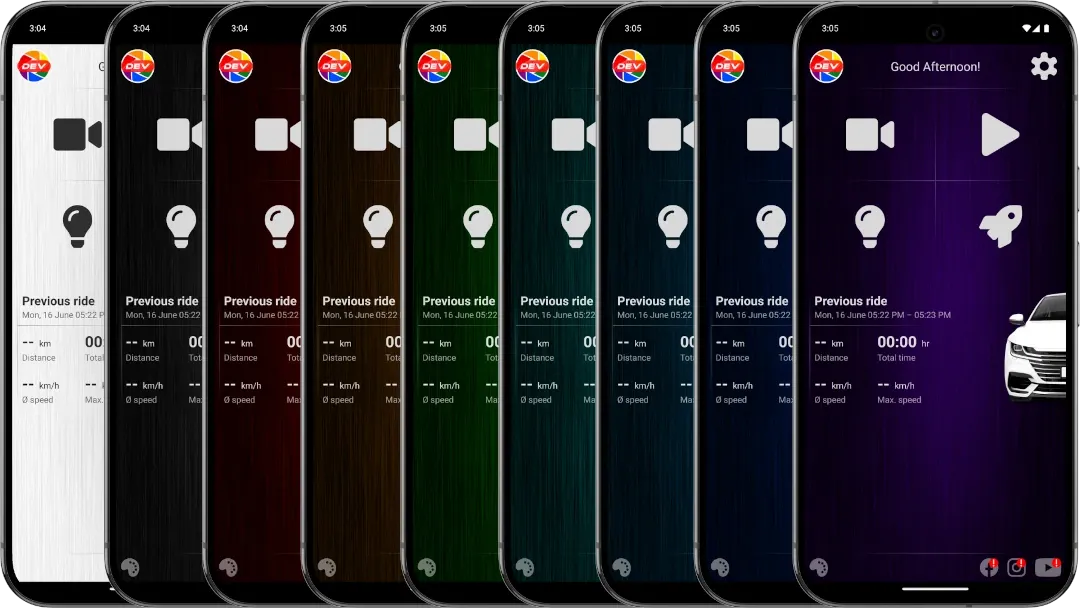
Custom themes recolor the accent used across DashCam Travel screens. The feature includes seven color palettes with two intensities per color, plus the default blue. Tap the palette icon on the main screen to move through them.
Quick setup
Choose a custom theme in two steps
- Open Settings > General > Theme and choose Dark, or use System while Android is in dark mode.
- Return to the main screen and tap the palette icon in the bottom-left corner.
Good to know
Custom themes work in Dark mode
- The palette icon is available while DashCam Travel uses its dark appearance.
- With System selected, custom colors appear when Android switches to dark mode.
- Light mode uses the standard light appearance and hides the palette icon.
Answers at a glance
Common questions
Are custom themes free?
Yes. Every custom color palette and intensity is available without a purchase.
How many custom themes are available?
DashCam Travel includes seven color palettes with two intensities per color, plus the default blue.
How do I switch to another color?
Tap the palette icon on the main screen. Each tap moves to the next color or intensity.
Do custom themes work with the System setting?
Yes. Custom colors appear when System follows Android into dark mode. The app uses its standard light appearance when Android is in light mode.